



Most people never look past YouTube’s default settings — and that’s exactly what YouTube is counting on. The platform is designed to keep you watching, scrolling, and clicking through one more video. But a handful of targeted tweaks can dramatically change how the app feels, from controlling your YouTube Shorts daily feed to locking down what the platform knows about you. Here’s what’s worth changing and why.
Summary
Key takeaways
- YouTube cannot fully disable Shorts, but you can set a daily limit down to zero minutes via Profile > Settings > Time management.
- Autoplay, video previews, playback speed, and sleep timers are all adjustable from the app’s Settings menu on both mobile and desktop.
- Watch and search history can be set to auto-delete after 4, 18, or 36 months through Google My Activity.
- Incognito mode hides activity from your account history but does not conceal it from ISPs or employers.
- Ambient mode requires Dark theme to be active and creates a dynamic color-spill effect around the video player.
Manage Shorts and Autoplay for Cleaner Viewing
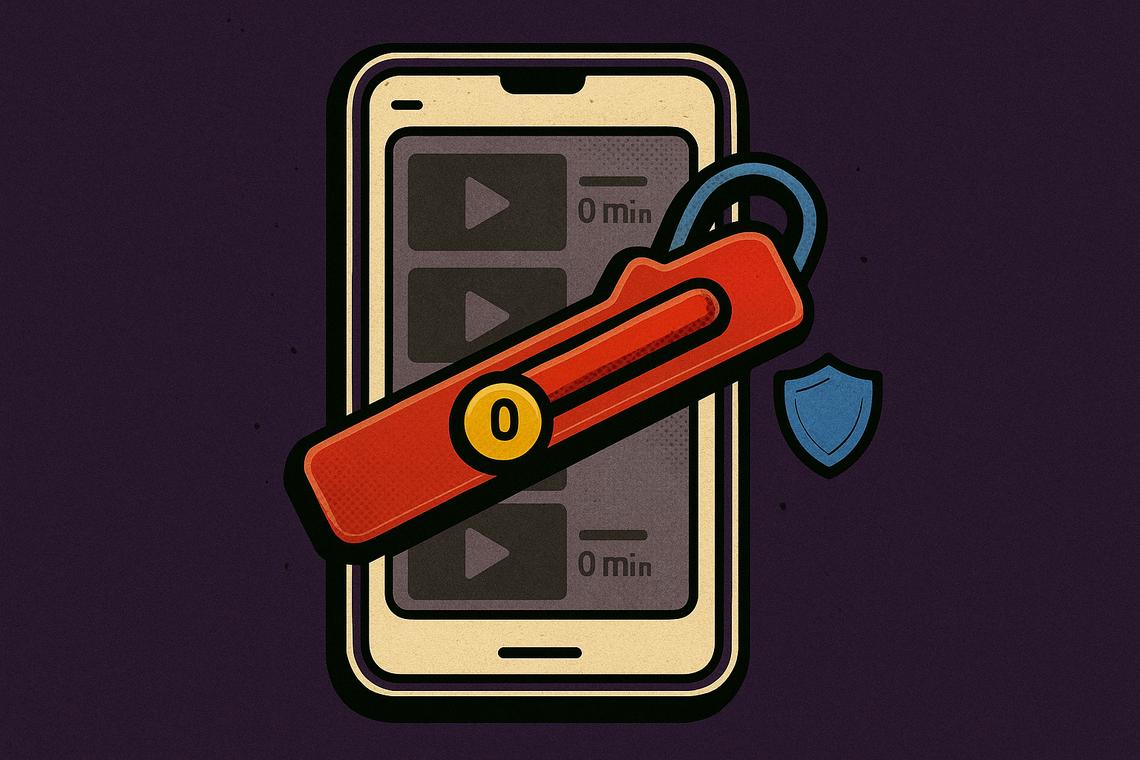
Shorts is arguably the most disruptive element of the modern YouTube experience, and the frustrating reality is there’s no switch to turn it off completely. YouTube simply doesn’t offer that option. What the mobile app does provide is a daily limit setting — including the ability to cap it at zero minutes — accessible through Profile > Settings > Time management > Shorts feed limit. It functions more like a soft reminder than a hard block, since the prompt can be dismissed, but it’s still a meaningful friction point, especially on a shared device used by children.
For additional control, tapping the three-dot menu on the Shorts shelf on the Home screen lets you select Show fewer Shorts, which nudges the algorithm away from that content type.
Disable Autoplay to stop YouTube from deciding what’s next
Autoplay is another default that quietly works against the viewer. When a video ends, YouTube immediately queues up whatever it thinks you should watch next — and the results are rarely compelling. Turning it off is straightforward: on mobile, go to Profile > Settings > Playback and toggle off “Autoplay next video.” On the video player itself, there’s also a pill-shaped toggle visible during playback. Once disabled, YouTube stops auto-loading the next video entirely.
Customize Video Playback and Appearance
Beyond Shorts and Autoplay, YouTube’s playback settings offer surprisingly granular control that most users never explore.
Disable video previews on mobile
Video previews — those short clips that play while you’re scrolling — can eat through mobile data and make the app feel visually overwhelming. Disabling them takes seconds: go to Profile > Settings > Playback > Playback in feeds and select Off. If you’d rather keep previews on Wi-Fi only, that middle-ground option is available too.
Set permanent video and audio quality preferences
The mobile app offers a quality control that the desktop version doesn’t match. Through Profile > Settings > Video quality preferences, you can set permanent defaults for both video and audio — choosing Data saver on mobile networks and Higher picture quality on Wi-Fi, for example. Higher audio quality is also available in this menu, though it requires a paid YouTube Premium subscription.
Adjust playback speed for faster viewing
For tutorial-heavy content or long-form explainers, watching at 1.25x or 1.5x speed through Settings > Playback speed can recover significant time. Enabling subtitles alongside the speed boost helps ensure nothing gets missed as the audio accelerates.
Use sleep timers to auto-pause videos
The sleep timer is an underused feature that automatically pauses a video after a set duration. On both mobile and desktop, open any video, go to Settings > Sleep timer, choose a duration, and YouTube will pause when the time runs out — useful for anyone who watches video before sleeping.
Ambient mode and Dark theme
Ambient mode creates a color-spill effect that bleeds hues from the video out onto the surrounding page, turning the static player into a more immersive visual environment. To activate it, Dark theme must first be enabled under Settings > General > Appearance. Once that’s done, open any video and navigate to Settings > More > Ambient mode to switch it on. Dark theme itself is independently useful for nighttime viewing — easier on the eyes and less jarring in low light.
Enhance Privacy and Notification Settings
YouTube’s default settings are generous — to YouTube. The platform collects watch history, search activity, and behavioral signals that feed its recommendation engine. Tightening these settings doesn’t break the experience; it just shifts more control back to the user.
Reduce or disable notifications
Notification volume from YouTube can become relentless without manual intervention. In the mobile app, tap Profile > Settings > Notifications and turn off the categories that don’t add value — recommended videos, promotional alerts, and activity updates are the usual culprits. On desktop, the same path leads to options for disabling browser alerts broken down by type: subscriptions, activity, and promotional.
Auto-delete watch and search history
Watch and search history improves recommendations, but there’s no reason to maintain a permanent record. Through Google My Activity > YouTube History > Manage history > Auto-delete, you can set history to delete automatically after 4, 18, or 36 months. Specific time ranges can also be deleted manually from that same screen. For those who want a cleaner break, YouTube History can be disabled entirely from the Google My Activity page.
Incognito mode: useful, but limited
Incognito mode on YouTube — enabled via Profile > Accounts > Turn on Incognito on mobile, or through a browser’s incognito window on desktop — keeps watch and search activity out of your signed-in account history. It’s genuinely useful for surprise searches or one-off sessions you don’t want influencing your recommendations for weeks.
The limit worth understanding clearly: Incognito does not function like a VPN. It does not hide activity from your internet service provider or from an employer’s network. It only prevents that session from being attached to your YouTube account history. Anyone expecting broader anonymity from this feature will be disappointed.
What makes these settings collectively significant is less about any single toggle and more about the cumulative effect. YouTube’s defaults optimize for engagement and data collection — both legitimate business interests. But the platform does provide enough control, if you know where to look, to build a substantially different experience: one that’s quieter, more private, and more intentional. The settings exist. The question is whether users find them before the defaults shape their habits instead.
FAQ
Can I completely disable YouTube Shorts?
No. YouTube does not allow fully disabling Shorts. You can set a daily limit — including zero minutes — through Profile > Settings > Time management > Shorts feed limit, but the reminder can be dismissed by the user. You can also reduce Shorts recommendations by tapping the three-dot menu on the Shorts shelf and selecting Show fewer Shorts.
Does Incognito mode on YouTube hide my activity from internet providers?
No. Incognito mode prevents watch and search activity from being saved to your signed-in account history, but it does not hide activity from ISPs or employers. It does not function as a VPN or any kind of network privacy tool.
How can I stop videos from playing automatically on YouTube?
You can turn off Autoplay by tapping the pill-shaped toggle visible during video playback, or on mobile by going to Profile > Settings > Playback and disabling “Autoplay next video.” Once off, YouTube will stop automatically loading the next video when the current one ends.
Is it possible to auto-delete my YouTube watch and search history?
Yes. Go to Google My Activity > YouTube History > Manage history > Auto-delete and choose a deletion period of 4, 18, or 36 months. You can also manually delete specific time ranges or disable YouTube History entirely from the same page.
Article produced with the assistance of artificial intelligence and reviewed by the editorial team.